
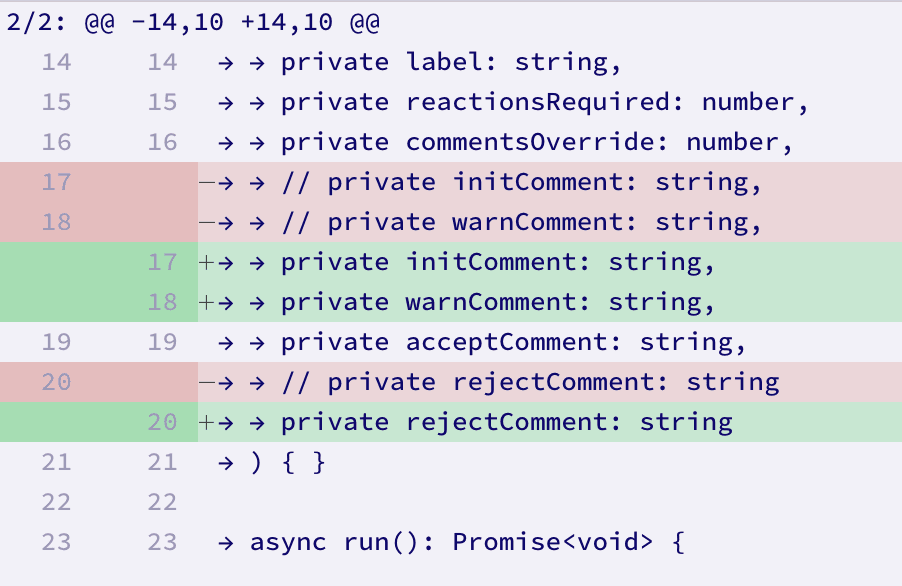
Git patches are portable diffs you can create, share, and apply to any repository. This guide covers git apply, git format-patch, git am, conflict resolution, and how AI tools are automating patch application for large-scale code changes.
What Is git apply?
git apply reads a patch file (the output of git diff) and applies the changes to files in your working directory. It does not create a commit — it just modifies the files. You stage and commit manually afterward.
Basic git apply
# Apply a patch to your working directory
git apply changes.patch

# Check if a patch applies cleanly (dry run)
git apply --check changes.patch

# View patch statistics without applying
git apply --stat changes.patch
Key behavior: git apply is an all-or-nothing operation. Either the entire patch applies cleanly, or nothing is modified. This is safer than the UNIX patch command, which can partially apply a patch and leave your working directory in an inconsistent state.
git apply when you have a simple diff (from git diff) and want to apply changes without committing them immediately. This is common when receiving patches from contributors, testing changes before committing, or applying changes from a different repository.Creating Patches
Git provides two main ways to create patches: git diff for simple diffs and git format-patch for patches with full commit metadata.
Method 1: git diff (Simple Patches)
git diff creates a unified diff of your changes. This is the simplest patch format — just the changes, no commit metadata.
Creating patches with git diff
# Patch of all unstaged changes
git diff > unstaged-changes.patch

# Patch of staged changes
git diff --cached > staged-changes.patch

# Patch of all changes (staged + unstaged)
git diff HEAD > all-changes.patch

# Patch between two commits
git diff abc123 def456 > between-commits.patch

# Patch between two branches
git diff main..feature-branch > branch-diff.patch

# Patch for a specific file
git diff -- src/auth.ts > auth-changes.patch
Method 2: git format-patch (Rich Patches)
git format-patch creates one patch file per commit with full metadata: author name, email, date, and commit message. These patches are applied with git am instead of git apply.
Creating patches with git format-patch
# Patch for the last commit
git format-patch -1 HEAD

# Patches for the last 3 commits (one file per commit)
git format-patch -3 HEAD

# Patches for all commits on a branch vs main
git format-patch main..feature-branch

# Single combined patch file
git format-patch main..feature-branch --stdout > feature.patch

# Include binary files (images, fonts, etc.)
git format-patch -1 HEAD --binary| Feature | git diff | git format-patch |
|---|---|---|
| Output | Single diff | One file per commit |
| Commit metadata | No | Yes (author, date, message) |
| Apply command | git apply | git am |
| Creates commits | No (manual commit) | Yes (automatic) |
| Best for | Quick changes, single patches | Multi-commit series, email workflows |
| Binary support | Limited | Yes (--binary flag) |
Applying Patches with git apply
The most common patch workflow: someone gives you a .patch or .diff file, and you need to apply it to your codebase.
Step-by-Step Workflow
Safe patch application workflow
# Step 1: Check if the patch applies cleanly
git apply --check fix-auth-bug.patch

# Step 2: Preview what will change
git apply --stat fix-auth-bug.patch

# Step 3: Apply the patch
git apply fix-auth-bug.patch

# Step 4: Review the changes
git diff

# Step 5: Stage and commit
git add -A
git commit -m "Apply auth bug fix patch"
Applying to the Index (Staging Area)
Use --index to apply changes to both your working directory and the staging area simultaneously. This saves you the manual git add step.
Apply to index and working directory
# Apply and stage in one step
git apply --index fix-auth-bug.patch

# Now just commit — no need to git add
git commit -m "Apply auth bug fix patch"
Applying Patches from Standard Input
You can pipe patches directly into git apply. Useful for applying patches from URLs, clipboard, or other commands.
Apply from stdin
# Apply from a URL
curl -sL https://github.com/user/repo/commit/abc123.patch | git apply

# Apply from clipboard (macOS)
pbpaste | git apply

# Apply from another git diff command
git diff main..feature -- src/ | git apply
git apply vs git am: When to Use Each
This is the most common source of confusion with Git patches. Both commands apply patches, but they work differently and accept different input formats.
| Behavior | git apply | git am |
|---|---|---|
| Input format | git diff output | git format-patch output |
| Creates commit | No | Yes |
| Preserves author | No | Yes |
| Preserves commit message | No | Yes |
| Error handling | All-or-nothing | Stops at first failed patch |
| Conflict resolution | --reject or --3way | git am --abort or --skip |
| Best for | Testing changes, quick fixes | Importing commit series |
git am example
# Apply a format-patch file (creates a commit)
git am 0001-fix-auth-bug.patch

# Apply multiple patches in order
git am *.patch

# Apply from stdin
git format-patch -1 HEAD --stdout | git am

# If a patch fails, abort and try again
git am --abort

# Skip a failing patch and continue
git am --skipFrom followed by a commit hash, it was created with git format-patch — use git am. If it starts with diff --git, it was created with git diff — use git apply.Handling Patch Conflicts
Patches fail when the file has changed since the patch was created. The context lines in the patch no longer match the actual file content. Here are the strategies for resolving this.
Three-Way Merge (Best Option)
The --3way flag attempts a three-way merge, using Git's merge machinery to resolve conflicts the same way it handles branch merges.
Three-way merge
# Attempt three-way merge for better conflict resolution
git apply --3way fix.patch

# If conflicts remain, resolve them like any merge conflict
git status           # Shows conflicted files
# Edit files to resolve conflicts
git add <resolved-files>
git commit -m "Apply fix with conflict resolution"
Reject Files
The --reject flag applies whatever it can and saves failed hunks to .rej files. You then manually apply the rejected hunks.
Apply with reject files
# Apply what you can, save failures to .rej files
git apply --reject fix.patch

# Find reject files
find . -name "*.rej"

# Manually apply rejected hunks, then clean up
rm *.rej
Whitespace Issues
Whitespace differences are the most common cause of trivial patch failures. The --whitespace flag handles these automatically.
Fix whitespace issues
# Fix whitespace issues automatically
git apply --whitespace=fix fix.patch

# Warn about whitespace issues but still apply
git apply --whitespace=warn fix.patch

# Strip trailing whitespace
git apply --whitespace=strip fix.patch
Advanced git apply Options
Power user options for complex patch workflows.
Advanced git apply options
# Reverse a patch (undo previously applied changes)
git apply --reverse fix.patch
# or shorthand:
git apply -R fix.patch

# Apply to a subdirectory
git apply --directory=src/components/ ui-fix.patch

# Exclude specific files from a patch
git apply --exclude="*.test.ts" fix.patch

# Include only specific files
git apply --include="src/auth/*" fix.patch

# Apply only part of a patch (interactive)
# Note: git apply doesn't support -i, use git checkout -p instead

# Verbose output (shows each file being patched)
git apply --verbose fix.patch

# Increase context matching fuzz factor
git apply --fuzz=3 fix.patch| Flag | Purpose | When to Use |
|---|---|---|
| --check | Dry run | Always run first to verify |
| --stat | Show file statistics | Preview what changes |
| --3way | Three-way merge on conflicts | When patch doesn't apply cleanly |
| --reject | Apply partial, save .rej files | When you want to manually fix parts |
| -R / --reverse | Undo a patch | Rolling back applied changes |
| --directory=DIR | Apply to subdirectory | Patches from different repo structures |
| --whitespace=fix | Auto-fix whitespace | Trivial whitespace failures |
| --exclude=PATTERN | Skip files matching pattern | Selective patch application |
| --verbose | Show progress | Debugging patch issues |
Real-World Patch Workflows
Backporting a Fix Across Branches
One of the most common patch use cases: a bug fix landed on main and you need to apply it to a release branch.
Backporting a fix
# Create a patch from the fix commit on main
git checkout main
git format-patch -1 abc123 --stdout > fix.patch

# Apply to the release branch
git checkout release/v2.1
git am fix.patch

# If it conflicts, resolve and continue
git am --abort  # start over if needed
git apply --3way fix.patch  # try 3way merge instead
git add . && git commit -m "Backport: fix auth bypass"
Contributing to Open Source via Patches
Some projects (Linux kernel, suckless tools, Alpine Linux) accept patches via email rather than pull requests.
Email patch workflow
# Create your feature on a branch
git checkout -b fix-memory-leak
# ... make changes ...
git commit -m "Fix memory leak in connection pool"

# Create patch files
git format-patch main..fix-memory-leak

# Send via email
git send-email \
  --to="maintainer@project.org" \
  --cc="dev-list@project.org" \
  0001-Fix-memory-leak-in-connection-pool.patch
Sharing Changes Without a Shared Remote
Patches work between repos that have no common remote — useful for air-gapped environments, vendor forks, or cross-VCS workflows.
Sharing patches without a remote
# On machine A: create the patch
git diff HEAD~3..HEAD > changes.patch
# Transfer via USB, email, etc.

# On machine B: apply the patch
git apply changes.patch
AI Apply Patch: Automated Code Editing
AI coding tools generate code edits that need to be applied to existing files. This is the same fundamental problem as git apply — taking a set of changes and merging them into existing code — but AI edits introduce challenges that traditional patches weren't designed for.
Every AI coding tool has its own approach to this problem:
- Claude Code uses search-and-replace blocks. The model outputs an
old_stringandnew_string. The tool finds the old string in the file and replaces it. Fails when the old string isn't unique or has drifted. - Cursor uses its own fast apply model to merge AI-generated snippets with existing code.
- OpenAI Codex uses an
apply_patchtool that emits structured unified diffs. GPT-5.1+ models were specifically trained to output well-formed patches. - Aider supports multiple edit formats including unified diffs, search-replace blocks, and whole-file rewrites. It uses progressive matching to handle drifted context.
Why Traditional Patches Break with AI Edits
Traditional git apply uses line-number-based matching. The patch says "at line 42, remove these 3 lines and add these 5 lines." This works when the file hasn't changed since the patch was created. It breaks in AI workflows for three reasons:
1. Context Drift
AI agents work in multi-turn conversations. The model reads a file at turn 1, generates an edit at turn 5. By turn 5, the file may have changed — the agent itself may have modified it in turn 3. The context lines in the edit no longer match the actual file.
2. Context Poisoning
As conversations grow long, models start compressing their internal representation of files. The model's "memory" of the file diverges from reality. Every diff it generates is based on a reconstructed version, not the actual source file. This is why edit accuracy degrades on long coding sessions.
3. Ambiguous Matching
Code has repetitive patterns. A file might have 10 if (error) return; lines. The model's edit says "replace this if (error) return;" — but which one? Line-number matching works for git apply because diffs include exact positions. AI-generated edits often lack this precision.
Morph Fast Apply: Deterministic AI Merges
Morph Fast Apply takes a different approach to AI patch application. Instead of generating a diff and hoping it matches, you send three inputs: the original code, an edit snippet with // ... existing code ... markers, and optional instructions. Morph returns the complete merged file.
This is deterministic — same inputs always produce the same output. No line-number matching. No context drift. No ambiguous hunks. The model understands the code structure and merges edits at the semantic level.
Morph Fast Apply (JavaScript)
import OpenAI from 'openai';

const client = new OpenAI({
  apiKey: process.env.MORPH_API_KEY,
  baseURL: 'https://api.morphllm.com/v1'
});

const response = await client.chat.completions.create({
  model: "morph-v3-fast",
  messages: [{
    role: "user",
    content: `<instruction>Add rate limiting to the /api/users endpoint</instruction>
<code>${originalCode}</code>
<update>
app.get('/api/users', rateLimiter({ max: 100 }), async (req, res) => {
  // ... existing code ...
});
</update>`
  }]
});

const mergedCode = response.choices[0].message.content;
Morph Fast Apply (Python)
from openai import OpenAI

client = OpenAI(
    api_key=os.getenv("MORPH_API_KEY"),
    base_url="https://api.morphllm.com/v1"
)

response = client.chat.completions.create(
    model="morph-v3-fast",
    messages=[{
        "role": "user",
        "content": f"""<instruction>Add input validation</instruction>
<code>{original_code}</code>
<update>{edit_snippet}</update>"""
    }]
)

merged_code = response.choices[0].message.content
The API is OpenAI-compatible, so you can use any OpenAI SDK. Streaming is supported for large files. At 10,500+ tokens/second, Morph processes a 500-line file in under a second.
| Property | git apply | AI Apply (Morph) |
|---|---|---|
| Matching strategy | Line numbers + context lines | Semantic code understanding |
| Handles context drift | No (fails) | Yes |
| Handles moved code | No (fails) | Yes |
| Creates commit | No | No (returns merged file) |
| Works with AI edits | Unreliable | Designed for it |
| Speed | Instant (local) | 10,500+ tok/sec (API) |
| Cost | Free | $0.50 per 1M tokens |
| Best for | Human-created patches | AI-generated code edits |
Common Errors and Fixes
error: patch does not apply
The most common error. Means the context lines in the patch don't match the current file content.
Fix: patch does not apply
# Try three-way merge
git apply --3way fix.patch

# Or apply what you can and manually fix the rest
git apply --reject fix.patch
# Check .rej files for failed hunks
error: patch failed (wrong line count)
The patch expects a different number of lines than the file actually has.
Fix: wrong line count
# Regenerate the patch against the current state
git diff current-branch..source-branch > updated.patch
git apply updated.patch
fatal: git apply: bad git-diff - expected /dev/null
Usually means the patch includes file creation/deletion but the format is wrong.
Fix: bad git-diff
# Check if the patch was created with a non-git tool
# Regenerate it with git:
git diff --no-index old-file new-file > proper.patch
Trailing whitespace errors
Fix: whitespace errors
# Auto-fix whitespace issues
git apply --whitespace=fix fix.patch
Frequently Asked Questions
How do I apply a patch in Git?
Use git apply <patch-file> to apply a patch to your working directory without creating a commit. For patches created with git format-patch, use git am <patch-file> to apply and commit in one step. Always run git apply --check <patch-file> first to verify the patch applies cleanly.
What is the difference between git apply and git am?
git apply modifies your working directory without creating a commit — you stage and commit manually. git am applies the patch AND creates a commit using the author, date, and message embedded in the patch file. Use git apply for patches from git diff. Use git am for patches from git format-patch.
How do I create a patch file in Git?
For a simple diff patch: git diff > changes.patch. For a patch with commit metadata: git format-patch -1 HEAD (creates a patch for the last commit). For patches between branches: git format-patch main..feature-branch. The format-patch version includes author info and commit messages, making it the recommended approach for sharing patches.
How do I fix a patch that won't apply?
First run git apply --check <patch-file> to see errors. Try git apply --3way <patch-file> to attempt a three-way merge. Use git apply --reject <patch-file> to apply what it can and save rejected hunks to .rej files for manual resolution. For whitespace issues, use git apply --whitespace=fix <patch-file>.
What is AI apply patch?
AI apply patch refers to using AI models to apply code changes intelligently, rather than relying on line-number-based patching. Traditional git apply breaks when context shifts — the file changed since the patch was created. AI tools like Morph Fast Apply and OpenAI's apply_patch tool use semantic understanding to merge changes even when the surrounding code has moved. Morph's approach sends original code + edit snippet + instructions and returns the deterministically merged result.
Apply AI-Generated Code Edits Reliably
Morph Fast Apply merges AI edits deterministically at 10,500+ tok/sec. OpenAI-compatible API. No line-number matching. No context drift failures.