

The best Cursor alternative for running several coding agents at once is Superset. It gives each Claude Code, Codex, opencode, or other CLI agent an isolated Git worktree, then puts terminal sessions, diffs, previews, and review in one desktop workspace. For a free, open-source in-editor agent, Cline and Kilo Code only charge model inference.
Cursor Pro is $20/mo and includes $20 of model usage, then continues on usage-based billing, and the editor is a proprietary VS Code fork. We compared 10 alternatives on price, license, GitHub stars, editor support, and the model each one runs. Three 2026 shifts matter: Claude Code now defaults to Claude Opus 5 and Codex to GPT-5.6 Sol, Windsurf is now Devin Desktop (windsurf.com redirects to devin.ai), and Cursor acquired Continue.dev.
Updated September 4, 2026: added Superset as the top choice for parallel coding agents. Verified its features, license, and platform support against Superset's site and repository.
SWE-bench Verified by Model (August 2026)
BYOK tools (Cline, opencode, Kilo Code, Aider) inherit the score of whatever model you point them at.
Same model, same score, whichever agent runs it. The two July 2026 defaults, Claude Opus 5 and GPT-5.6 Sol, have no SWE-bench Verified row yet; on Terminal-Bench 2.1 they score 89.1% (max effort) and 89.5% (xhigh), run by Artificial Analysis on the Terminus 2 harness.
Quick Comparison: Cursor Alternatives at a Glance
Superset leads when the job is coordinating several coding agents in parallel. Four agents are free and open-source (Cline, opencode, Kilo Code, Aider): the extension or CLI costs nothing and you pay only for the model you run. The cheapest paid plans are GitHub Copilot and Zed at $10/mo.
| Tool | Price | License | Editors | Verdict |
|---|---|---|---|---|
| Superset | Free tier (BYOK) | Source available (ELv2) | macOS, experimental Linux | Best for parallel coding agents |
| Cline | Free (BYOK) | Apache-2.0 | VS Code, JetBrains, CLI | Best free in-editor agent |
| opencode | Free (BYOK) | MIT | Terminal, desktop, IDE | Most-starred OSS agent |
| Kilo Code | Free (BYOK) | MIT | VS Code, JetBrains, CLI | 0% markup gateway |
| Aider | Free (BYOK) | Apache-2.0 | Terminal | Best OSS CLI pair-programmer |
| GitHub Copilot | Free / $10 Pro | Proprietary | VS Code, JetBrains, Neovim, Xcode | Best free tier from a major vendor |
| Claude Code | $20 Pro | Proprietary | Terminal, VS Code, JetBrains | Highest SWE-bench (95.0%, Fable 5) |
| OpenAI Codex | Free / $20 Plus | Apache-2.0 | Terminal, IDE, cloud | Strong cloud sandboxes |
| Zed | Free / $10 Pro | OSS (Rust) | Zed editor | Fastest editor, hosts agents |
| Windsurf (Devin Desktop) | Free / $20 Pro | Proprietary | Devin editor | Now Cognition's Devin |
GitHub Stars: The Open-Source Field
For the "open source cursor alternative" and "cursor github competitor" searches, star count is the closest proxy for community. opencode leads every coding agent at 196,102 stars. Claude Code has the most-starred repo overall (141,041) but its code is not open-source.
| Tool | Stars | License | Type |
|---|---|---|---|
| opencode | 196,102 | MIT | Terminal agent (OSS) |
| Claude Code | 141,041 | Proprietary | Terminal/IDE agent |
| Gemini CLI | 106,458 | Apache-2.0 | Terminal agent (OSS) |
| Codex CLI | 105,310 | Apache-2.0 | Terminal agent (OSS) |
| Zed | 88,420 | OSS (Rust) | Editor |
| Cline | 66,001 | Apache-2.0 | VS Code agent (OSS) |
| Aider | 48,122 | Apache-2.0 | Terminal CLI (OSS) |
| Continue.dev | 35,433 | Apache-2.0 | Extension (acquired by Cursor) |
| Kilo Code | 26,821 | MIT | VS Code/JetBrains agent (OSS) |
| Roo Code | 24,349 | Apache-2.0 | VS Code agent (OSS) |
Cline, opencode, Kilo Code, and Aider are all model-agnostic, so price and quality come from the model behind your API key, not the tool. Morph's router (auto) scores each request and routes to the cheapest model that clears the bar, which makes an agent cheaper and faster at the same time. Morph also serves open-source models at 16-bit (bf16) activations with no fp8 or int8 quantization, so output matches the reference weights: GLM-5.3 at $1.19/$3.74 per 1M tokens, DeepSeek V4 Flash at $0.141953125/$0.399625, and Fast Apply merges edits at about 10,500 tokens per second. Point any BYOK agent above at it. See Morph models and pricing.
Monthly Cost: Paid Tier
Lower is better. The four open-source agents are $0; you pay only model inference.
Cursor Pro includes $20 of model usage, then bills on-demand. The OSS agents bill only your model API; with cheap models that can stay well under a paid subscription.
Why Developers Leave Cursor
Cursor still works, and its $20 Pro plan now includes $20 of model usage with on-demand billing past that. The recurring complaints fall into four buckets, and open-source alternatives answer the first three directly.
Usage-based overages
The base plan is $20/mo with $20 of included usage. Heavy agent runs continue on on-demand billing past that, so monthly spend is hard to predict. Pro Plus is $60 and Ultra is $200.
VS Code fork lock-in
Cursor is a proprietary fork. Keybindings, extensions, and workflows are tied to its release cycle. Moving to JetBrains, Neovim, or plain VS Code means losing the AI layer.
Privacy gaps
Code is sent to third-party APIs. Open-source agents like Cline and Kilo Code can run local models via Ollama or LM Studio, keeping code on your machine.
No model control
The model is chosen for you. BYOK agents let you pick any provider, route to the cheapest passing model, or self-host open weights for predictable cost.
1. Superset: Best for Running Coding Agents in Parallel
Superset is a source available desktop workspace for running many coding agents at once. Each task gets an isolated Git worktree, branch, terminal, and environment, so Claude Code, Codex, opencode, Cursor Agent, or any other CLI agent can work on the same repository without overwriting another agent's changes. The app brings monitoring, diff review, previews, ports, and editor handoff into one place.
- Runs many CLI coding agents in parallel across isolated Git worktrees
- Works with Claude Code, Codex, opencode, Cursor Agent, and any terminal based agent
- Built in terminal, diff review, browser previews, automations, CLI, SDK, and MCP server
- Free tier and bring your own agent subscriptions or API keys
- Source available under ELv2, not OSI approved open source
- Desktop app is currently for macOS, with Linux support still experimental
- Does not include model inference, so agent subscriptions and API usage are separate
Verdict: The strongest Cursor alternative when the bottleneck is supervising several agents rather than replacing one editor. Superset separates concurrent tasks with worktrees and gives one review surface for the results.
| Aspect | Superset | Cursor |
|---|---|---|
| Primary job | Orchestrate parallel CLI agents | AI editor with agents and Tab |
| Agent choice | Any CLI coding agent | Cursor agents |
| Task isolation | Git worktree per workspace | Parallel agents in Cursor |
| Model access | Bring your own subscriptions and keys | Cursor managed plans and usage |
| Platforms | macOS, experimental Linux | macOS, Windows, Linux |
2. Cline: Best Free, Open-Source In-Editor Agent
Cline is the best free Cursor alternative for people who want to stay in VS Code. It is an open-source (Apache-2.0) extension with 66,001 GitHub stars; you bring your own API key, so the tool itself is $0 and you pay only for inference. It is fully model-agnostic, with BYOK support across Anthropic, OpenAI, Google, OpenRouter, AWS Bedrock, GCP Vertex, Groq, Cerebras, and DeepSeek.

Cline running in VS Code.
- Free and open source (Apache-2.0); 66,001 GitHub stars and an active community
- BYOK across Anthropic, OpenAI, Google, OpenRouter, Bedrock, Vertex, Groq, Cerebras, and DeepSeek
- Model-agnostic: run Claude Fable 5 for 95.0% SWE-bench Verified, or a cheap model for routine edits
- Works in VS Code and JetBrains; headless CLI mode for CI/CD
- No tab completions; Cursor's inline autocomplete is faster for small edits
- Your API bill scales with usage and can pass a $20 Cursor plan for heavy work
- Setup means configuring your own keys and model choices
Verdict: The best free alternative if you live in VS Code or JetBrains, want open-source transparency, or need the freedom to pick any model provider.
| Aspect | Cline | Cursor |
|---|---|---|
| Price | Free (pay model inference) | $20-$200/mo |
| Open source | Yes (Apache-2.0) | No |
| Model choice | Any provider (BYOK) or local | Cursor-managed |
| Editor support | VS Code, JetBrains, CLI | Cursor fork only |
| Tab completions | Not available | Sub-second, specialized |
3. opencode: The Most-Starred Open-Source Agent
opencode is the free terminal option and the most-starred open-source coding agent at 196,102 GitHub stars (MIT). It runs in the terminal, a desktop app, or an IDE extension, and is fully model-agnostic: configure any provider with your own keys and there is no preset default model. The team also offers opencode Zen, a curated set of hosted models, for people who do not want to manage keys.
- Most-starred open-source coding agent: 196,102 GitHub stars (MIT)
- Runs in the terminal, a desktop app, or an IDE extension
- Model-agnostic BYOK with no preset default; optional opencode Zen hosted models
- MCP servers, LSP servers, and sub-agents built in
- Terminal-first; no inline editor completions
- No bundled inference; you bring keys or use opencode Zen
- Repo moved from sst/opencode to anomalyco/opencode (old links redirect)
Verdict: Best free, open-source pick for terminal-centric workflows and the strongest answer to "open source cursor alternative" on GitHub by community size.
4. Kilo Code: Free Extension with a 0% Markup Gateway
Kilo Code is a free, open-source (MIT) agent for VS Code, JetBrains, and the CLI with 26,821 GitHub stars. The extension is free and AI usage is billed separately. Its differentiator is the Kilo Gateway: pay-as-you-go at exact provider rates with no markup, plus an Auto Model router that picks across Frontier, Balanced, and Free tiers. You can also BYOK or run local models via Ollama and LM Studio. The old kilocode.ai domain now redirects to kilo.ai.
- Free and open source (MIT); 26,821 GitHub stars
- Kilo Gateway is pay-as-you-go at provider rates with 0% markup
- BYOK or local models via Ollama and LM Studio
- 500+ models across 60+ providers, with an Auto Model router (Frontier / Balanced / Free)
- Younger and smaller community than Cline
- Gateway billing is separate from the free extension
- VS Code, JetBrains, and CLI only; no standalone editor
Verdict: Best free in-editor option if you want zero-markup inference and a large model catalog without managing keys for every provider.
5. Aider: Open-Source Terminal Pair-Programmer
Aider is a free, open-source (Apache-2.0) AI pair-programming tool that runs in the terminal, with 48,122 GitHub stars and strong git integration. It is BYOK and model-agnostic. Aider also publishes the polyglot leaderboard: 225 Exercism exercises across C++, Go, Java, JavaScript, Python, and Rust that test editing code without human help. On that board gpt-5 (high) leads at 88.0%, o3-pro (high) at 84.9%, and gemini-2.5-pro at 83.1%, though the board lags the newest 2026 frontier models.
- Free and open source (Apache-2.0); 48,122 GitHub stars
- Terminal-native pair programmer with strong git integration
- BYOK and model-agnostic
- Publishes the polyglot leaderboard: 225 exercises across 6 languages
- Command-line only; no GUI or inline completions
- Its public leaderboard trails the newest 2026 frontier models (repo last pushed May 2026)
- Less autonomous than agent-style tools like Cline or opencode
Verdict: Best for developers who want a scriptable, git-aware CLI and a transparent, reproducible benchmark over a full IDE experience.
6. GitHub Copilot: Best Free Tier from a Major Vendor
GitHub Copilot has the strongest no-API-key free tier: $0/mo for 2,000 code completions and 50 chat requests per month (including Copilot Edits), with access to Haiku 4.5 and GPT-5 mini. Pro is $10/mo with unlimited completions, $15 of monthly model credits, a cloud agent, and the ability to run Claude Code and Codex as third-party agents. It works in VS Code, JetBrains, Neovim, and Xcode.
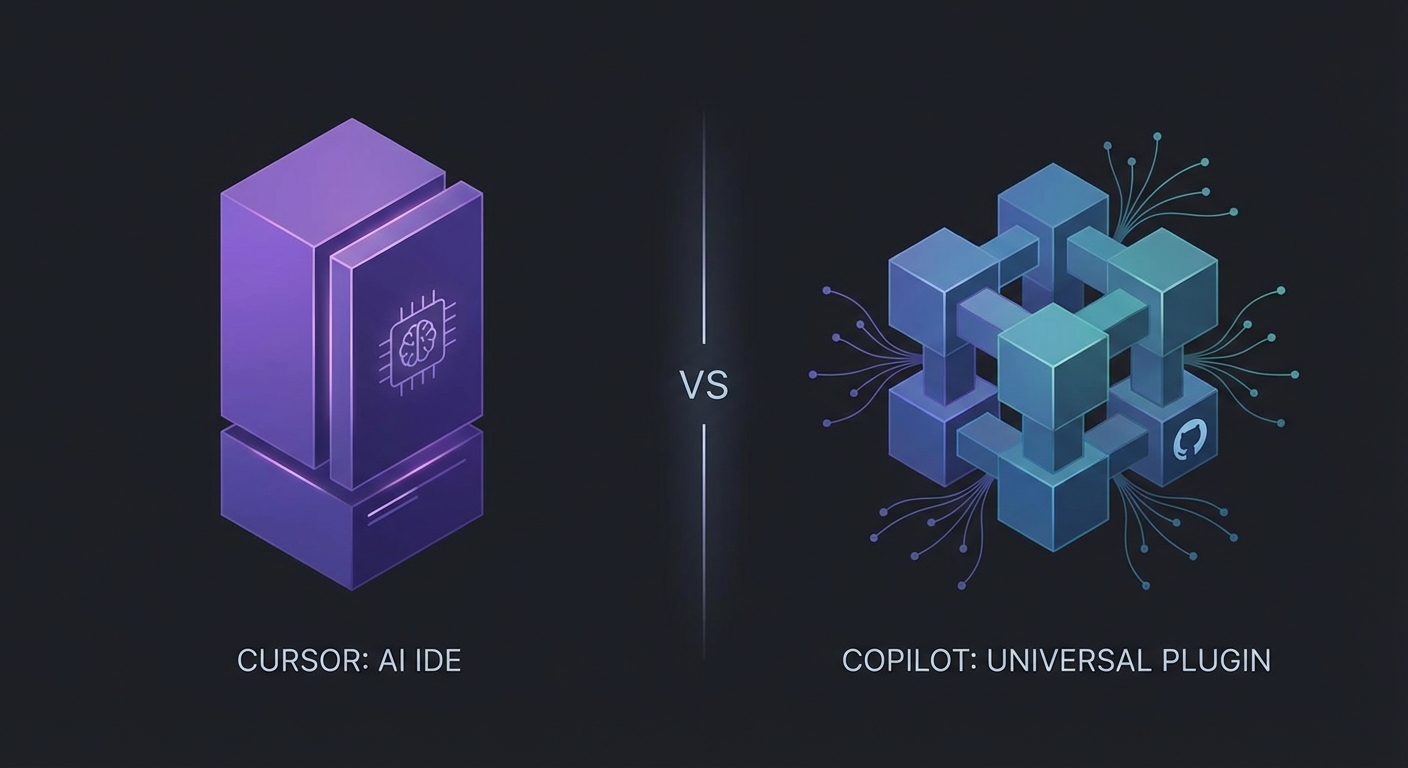
Copilot in VS Code with multi-agent support.
- Free tier with no API key: 2,000 completions and 50 chat requests per month (Haiku 4.5, GPT-5 mini)
- Pro is $10/mo with unlimited completions and $15 of monthly model credits
- Runs Claude Code and Codex as third-party agents from one subscription
- Works in VS Code, JetBrains, Neovim, and Xcode; native AI PR review
- Individual agents are shallower than Claude Code's or Cursor's native ones
- Premium model usage draws down monthly credits, then bills on-demand
- Pro+ ($39/mo) is required for Opus-class models
Verdict: Best choice for a free start with no API key, or for one $10/mo subscription that runs multiple agent types across the widest set of editors.
| Feature | GitHub Copilot | Cursor |
|---|---|---|
| Price (individual) | Free / $10 Pro / $39 Pro+ / $100 Max | $20 Pro / $60 Pro Plus / $200 Ultra |
| Free tier | 2,000 completions + 50 chat/mo | Hobby: limited agent + tab |
| Editor support | VS Code, JetBrains, Neovim, Xcode | Cursor fork only |
| Third-party agents | Claude Code, Codex | Cursor agents only |
| Code review | Native AI PR review | Bugbot |
7. Claude Code: Highest SWE-bench, Deepest Agent Stack
Claude Code is the strongest tool here on code quality. Since July 24, 2026 its default Opus is Claude Opus 5 ($5 in / $25 out per 1M tokens, 1M-token context, 89.1% on Terminal-Bench 2.1 at max effort), and Anthropic ships high effort rather than max as the Claude Code default. Selecting Claude Fable 5 ($10 / $50) gets you the highest published benchmark numbers in this set: 95.0% SWE-bench Verified and 80.3% SWE-bench Pro. Opus 4.8 stays selectable at 88.6% Verified and 69.2% Pro, and Sonnet 5 covers the cheap end at $2 / $10 (made the standard price; the planned $3 / $15 increase was cancelled). It is a proprietary agent that runs across the terminal, VS Code, JetBrains, desktop, web, and CI, and its repo is the most-starred here at 141,041 stars even though the code is not open-source.
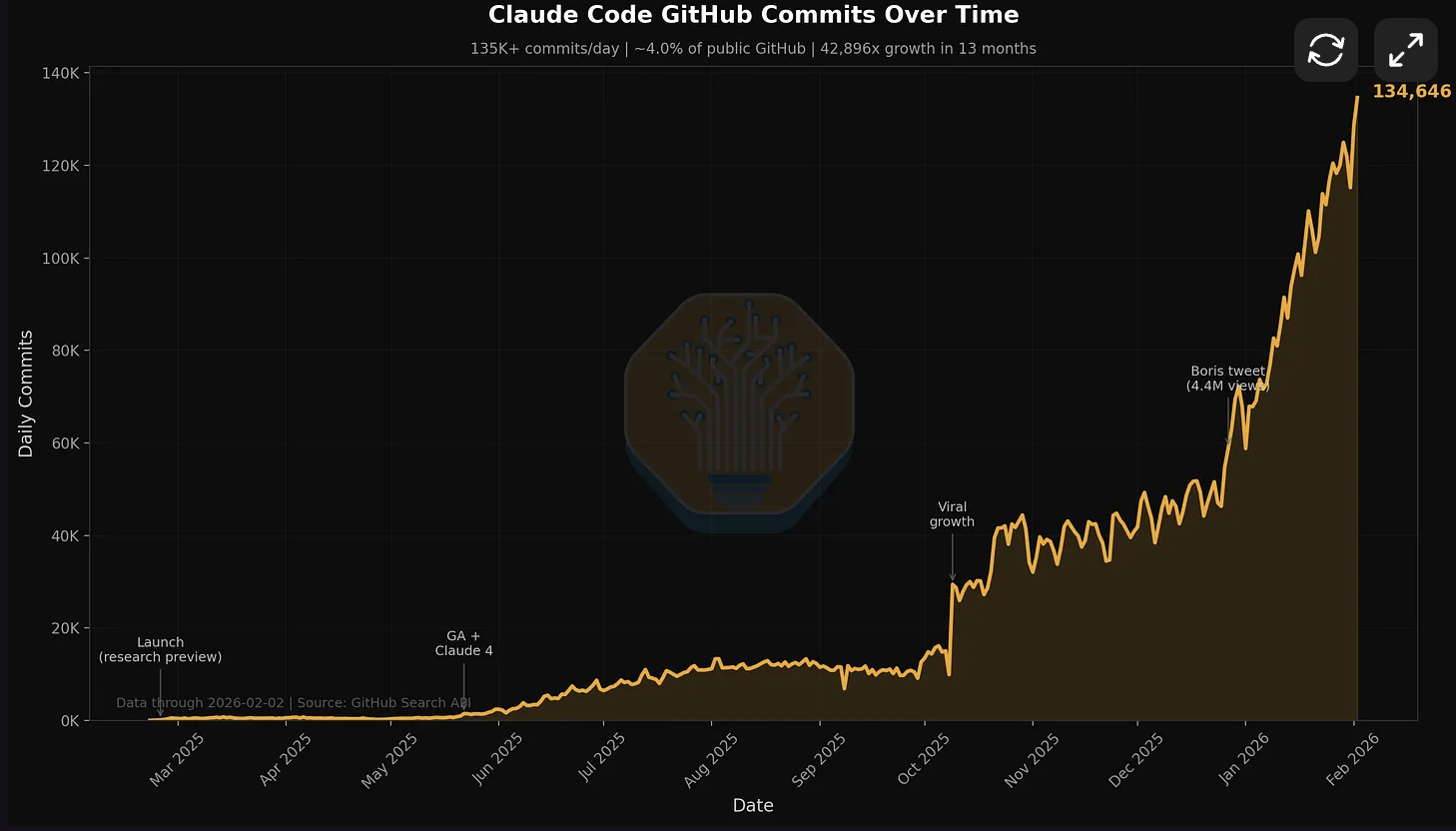
Claude Code adoption growth. Source: SemiAnalysis / GitHub data.
- Claude Fable 5 scores 95.0% SWE-bench Verified and 80.3% SWE-bench Pro, the highest here
- Claude Opus 5 is the default since July 24, 2026: $5 / $25 per 1M tokens, 1M-token context
- Sub-agents and agent teams, background and cloud sessions, hooks, skills, and CLAUDE.md memory
- Runs in the terminal, VS Code, JetBrains, desktop, web, and CI
- Most-starred repo in this set at 141,041 GitHub stars
- Proprietary; the code is not open source despite the public repo
- No tab completions
- Max plan is $200/mo, the same as Cursor Ultra
Verdict: Best for large codebases, long-horizon agentic work, and teams that index on benchmark code quality. Pro is $20/mo ($17/mo billed annually); Max runs from $100/mo.
| Aspect | Claude Code | Cursor |
|---|---|---|
| SWE-bench Verified | 95.0% (Fable 5) | Not published |
| Agent stack | Sub-agents, hooks, skills, memory | Parallel agents, Bugbot |
| Surfaces | Terminal, VS Code, JetBrains, web, CI | Cursor fork only |
| Tab completions | Not available | Sub-second, specialized |
| Starting price | $20/mo (Pro) | $20/mo (Pro) |
8. OpenAI Codex: Best for Isolated Cloud Sandboxes
Codex is OpenAI's coding agent for the terminal, IDE, and cloud, open-source under Apache-2.0 with 105,310 GitHub stars. Cloud tasks run in network-isolated containers, which makes it strong for security-sensitive work. GPT-5.6 went generally available on July 9, 2026 and Codex now defaults to GPT-5.6 Sol ($5 in / $30 out per 1M tokens), with Terra ($2.50 / $15) and Luna ($1 / $6) as the cheaper tiers and GPT-5.5 still selectable. Sol leads Terminal-Bench 2.1 at 89.5% at xhigh effort. It is bundled with ChatGPT plans and metered in messages per shared 5-hour window.

Codex CLI with cloud sandbox isolation.
- Open source (Apache-2.0); 105,310 GitHub stars
- Runs in the terminal, IDE, and cloud with network-isolated task sandboxes
- Bundled with ChatGPT plans from $0 (limited) and $8/mo Go to $20/mo Plus
- GPT-5.6 Sol is the default and tops Terminal-Bench 2.1 at 89.5% (xhigh); Terra and Luna cost less
- Usage is metered in messages per shared 5-hour window per plan
- Cloud sandboxes disable network access during a task
- Best value needs a ChatGPT subscription; API-key use is billed per token
Verdict: Best for security-conscious teams and spec-then-review workflows. Not ideal if you want real-time inline assistance.
9. Zed: Fastest Editor, Hosts Any Agent
Zed is an open-source, GPU-accelerated Rust editor with 88,420 GitHub stars. Instead of building its own agent, it hosts external ones (Claude Agent, Codex CLI) with full editor integration. The Personal plan is free with 2,000 accepted edit predictions per month; Pro is $10/mo for unlimited predictions plus $5 of included tokens; Business is $30/seat/mo. BYOK is unlimited with your own keys.
- Open-source Rust editor, GPU-accelerated, 88,420 GitHub stars
- Free Personal plan: 2,000 accepted edit predictions per month
- Hosts external agents (Claude Agent, Codex CLI) inside the editor
- BYOK is unlimited with your own keys
- Its own AI features are less mature than Cursor's
- Smaller extension ecosystem than VS Code
- Anthropic Opus models are not available in the free trial
Verdict: Best for peak editor performance with the freedom to plug in any agent. Not for those who want one fully integrated AI IDE out of the box.
10. Windsurf (now Devin Desktop): Folded into Cognition
Windsurf no longer exists as a separate product. windsurf.com/pricing 308-redirects to devin.ai/pricing: Cognition, the company behind Devin, owns it and rebranded the editor as Devin Desktop. The free tier gives unlimited Tab completions and inline edits with a light agent quota. Devin Pro is $20/mo with full model access and Devin Cloud agents; Devin Max is $200/mo; the team plan is $80/mo plus $40/mo per full dev seat.
- Free tier: unlimited Tab completions and inline edits with a light agent quota
- Devin Pro is $20/mo with full model access and Devin Cloud agents
- Direct Devin integration for long-running autonomous tasks
- Windsurf as a standalone product is gone; windsurf.com redirects to devin.ai
- Still its own editor, so you trade one lock-in for another
- Roadmap now follows Cognition's Devin priorities
Verdict: Reasonable if you want unlimited Tab completions for free or plan to lean on Devin's autonomous agents. Expect the product to keep converging with Devin.
Notable Mentions
Gemini CLI and Antigravity CLI
On June 18, 2026, Google stopped serving free, Google AI Pro, and Ultra requests for Gemini CLI and the Gemini Code Assist IDE extensions, replacing them with Antigravity CLI (open to everyone). Enterprise access via Code Assist Standard and Enterprise is unchanged. Gemini CLI (106,458 stars, Apache-2.0) still runs with credentials, on Gemini 3 Pro and Gemini 3 Flash with a 1M-token context.
Amp (Sourcegraph)
Amp is pay-as-you-go with no subscription ($5 minimum, no markup for individuals and teams). It spawns parallel sub-agents and ships an Oracle review tool built on a high-reasoning GPT-5 series model. The enterprise tier costs 50% more with a one-time $1,000 purchase.
Roo Code and Roomote
Roo Code (24,349 stars, Apache-2.0) is a free, BYOK Cline fork for VS Code. roocode.com now redirects to roomote.dev, the team's separate hosted product, which starts at $99/mo with a 7-day trial.
Continue.dev and Void
Continue (35,433 stars, Apache-2.0) was acquired by Cursor; the open-source codebase remains available. Void, the privacy-first VS Code fork, is no longer actively developed. For local-model privacy, use Cline or Kilo Code with Ollama.
Pricing Comparison: Every Cursor Alternative
The four open-source agents charge nothing for the tool; you pay only for model inference, which can stay well under a paid subscription if you use cheaper models. Among paid tools, GitHub Copilot and Zed are the cheapest at $10/mo.
| Tool | Free Tier | Paid | Top Tier |
|---|---|---|---|
| Cursor | Hobby ($0, limited) | $20 Pro / $60 Pro Plus | $200 Ultra |
| Cline | Free (BYOK) | Pay model inference only | No subscription |
| opencode | Free (BYOK) | Pay model inference only | opencode Zen (hosted) |
| Kilo Code | Free (BYOK) | Kilo Gateway, 0% markup | No subscription |
| Aider | Free (BYOK) | Pay model inference only | No subscription |
| GitHub Copilot | 2,000 completions + 50 chat/mo | $10 Pro / $39 Pro+ | $100 Max |
| Claude Code | Limited free | $20/mo (Pro) | $100 / $200 Max |
| OpenAI Codex | $0 (limited) | $8 Go / $20 Plus | $100+ Pro |
| Zed | 2,000 edit predictions/mo | $10/mo (Pro) | $30/seat Business |
| Windsurf (Devin) | Unlimited Tab, light agent quota | $20/mo (Pro) | $200/mo (Max) |
Total Cost with Heavy Agent Usage
Agent-heavy workflows change the math. Each sub-agent burns tokens, so a 3-agent run uses roughly 3x the tokens of one. With the open-source tools, that cost is your model bill, so the lever is model choice: route routine edits to a cheap model and reserve a frontier model for hard work. A subscription with included usage (Copilot Pro at $10, Codex with ChatGPT Plus at $20) is more predictable; BYOK is cheaper if you manage the model mix.
Decision Framework: Pick Your Cursor Alternative
| Your Priority | Best Pick | Why |
|---|---|---|
| Free + open source, in editor | Cline or Kilo Code | Apache-2.0 / MIT, BYOK, pay only inference; Kilo Gateway adds 0% markup |
| Free + open source, terminal | opencode | Most-starred OSS agent (196,102), MIT, MCP + LSP + sub-agents |
| Free from a major vendor | GitHub Copilot Free | 2,000 completions + 50 chat/mo at $0, no API key |
| Highest code quality | Claude Code | Fable 5 scores 95.0% SWE-bench Verified; Opus 5 is the default |
| Cheapest paid | Copilot or Zed ($10/mo) | Half of Cursor's $20 Pro |
| Cloud sandboxes / isolation | OpenAI Codex | Network-isolated cloud tasks; GPT-5.6 Sol default |
| Fastest editor | Zed | Rust, GPU-accelerated; hosts external agents |
| Local models / privacy | Cline or Kilo Code | Run local models via Ollama or LM Studio |
| CI/CD automation | opencode or Cline | Headless terminal mode with structured output |
| Lowest model cost (BYOK) | Morph router or DeepSeek V4 Flash | auto routes to the cheapest passing model; morph-dsv4flash is $0.141953125/$0.399625 at 16-bit |
Frequently Asked Questions
What is the best Cursor alternative in 2026?
It depends on what is driving you away. For a free, open-source in-editor agent, Cline and Kilo Code charge only model inference. opencode is the free terminal option and the most-starred OSS agent at 196,102 stars. For the highest code quality, Claude Code can run Claude Fable 5 at 95.0% SWE-bench Verified, and it defaults to Claude Opus 5. For the cheapest paid plan, GitHub Copilot and Zed are $10/mo.
Is there a free alternative to Cursor?
Yes. Cline (Apache-2.0), opencode (MIT), Kilo Code (MIT), and Aider (Apache-2.0) are free and open-source; you bring your own API key and pay only for model inference. GitHub Copilot Free needs no key and gives 2,000 completions plus 50 chat requests per month. Zed Personal is free with 2,000 edit predictions per month.
What is the best open-source Cursor alternative on GitHub?
opencode is the most-starred open-source coding agent at 196,102 GitHub stars (MIT, terminal). Cline (66,001 stars, Apache-2.0) and Kilo Code (26,821 stars, MIT) are the open-source in-editor options, and Aider (48,122 stars, Apache-2.0) is the open-source terminal CLI. All four are model-agnostic and free to run with your own API key.
Is Claude Code better than Cursor?
Claude Code defaults to Claude Opus 5 (89.1% on Terminal-Bench 2.1 at max effort) and can run Claude Fable 5, which scores 95.0% SWE-bench Verified and 80.3% SWE-bench Pro, the highest published numbers here. It supports sub-agents, hooks, skills, and CLAUDE.md memory across terminal, VS Code, JetBrains, desktop, and web. Cursor has faster tab completions and a plugin marketplace. See our full comparison.
Can I use Cursor alternatives with VS Code?
Yes. Cline, Kilo Code, GitHub Copilot, and Continue (now owned by Cursor) run as VS Code extensions. opencode, Aider, OpenAI Codex, Gemini CLI, and Claude Code run in the terminal, and Claude Code and Copilot also have VS Code integrations. Zed and Devin Desktop (formerly Windsurf) are their own editors.
Why are developers switching away from Cursor?
The common complaints are usage-based overages beyond the $20 base plan, lock-in to a proprietary VS Code fork, and privacy concerns about code sent to third-party APIs. Open-source agents like Cline and opencode remove the lock-in and let teams pick any model or run local models via Ollama.
Lift Any Agent's SWE-bench with WarpGrep
WarpGrep is model-agnostic agentic code search that improves an AI coding agent's SWE-bench result by giving it better context. It runs as an MCP server inside Claude Code, Cursor, Codex, Cline, and opencode. $0.80 per 100K tokens.
Sources
- Cursor: Pricing
- Devin (Windsurf): Pricing
- GitHub Copilot: Plans & Pricing
- Cline: Pricing · cline/cline
- opencode: Docs · anomalyco/opencode
- Kilo Code: Pricing · Kilo-Org/kilocode
- Aider: Polyglot Leaderboard · Aider-AI/aider
- Claude Code: Overview · Claude models
- OpenAI Codex: Pricing · Codex models
- Zed: Pricing
- Google: Gemini CLI to Antigravity CLI
- Anthropic: Introducing Claude Opus 5 · Artificial Analysis: GPT-5.6 benchmarks · OpenAI: API pricing · Google DeepMind: Gemini 3 Pro